How to clean your computer with Ccleaner | Step-by-step guide
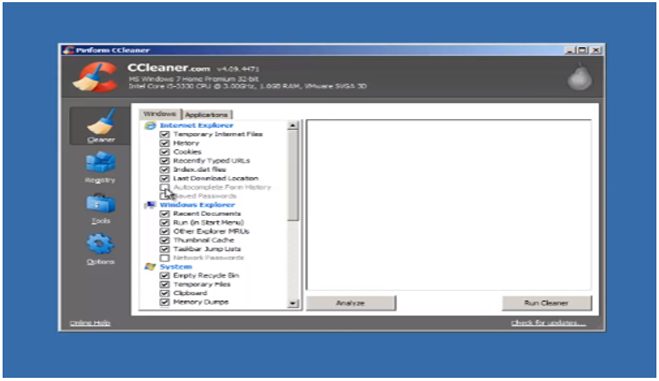
Ccleaner is a software utility that is designed to clean your computer by removing unwanted files, temporary files, and other system junk. Here are the steps to clean your computer with Ccleaner:
– Download and install the software: You can download it from the official website of Ccleaner. Once the download is complete, run the installer and follow the on-screen instructions to install the software.
– Launch the program: Once the installation is complete, launch Ccleaner by double-clicking the desktop shortcut or by searching for it in the Start menu.
– Analyze your system: On the Ccleaner interface, click on the “Analyze” button. This will scan your system for unnecessary files that can be cleaned up.
– Review the analysis results: Once the analysis is complete, it will show you a list of files that can be cleaned up. Review the list to make sure that you are not deleting any important files. If you are not sure about a file, it’s better to leave it.
– Clean up your system: Click on the “Run Cleaner” button to clean up your system. Ccleaner will remove all the files that you have selected.
– Check for registry issues: Ccleaner can also scan your system for registry issues. Click on the “Registry” tab and then click on “Scan for Issues”. Once the scan is complete, review the results and click on “Fix Selected Issues” to fix the registry issues.
– Uninstall unwanted programs: Ccleaner also allows you to uninstall unwanted programs. Click on the “Tools” tab and then click on “Uninstall”. Select the program that you want to uninstall and click on the “Uninstall” button.
Gather more information on the matter. Download the Ccleaner through the link. Alternatively, find more technology stories here.
Author: PC-GR
The World of Technology