How to burn CDs or DVDs on a computer | Step-by-Step guide
Many people struggle, up to this day, with the process of burning disks. Below follows a simple, yet comprehensive guide for you to follow.
The process is actually simple. Let’s have a look:
Gather the materials
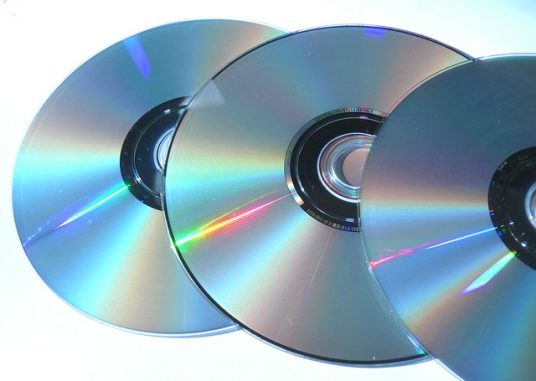
You’ll need a blank CD or DVD, a computer with a CD or DVD drive, and burning software.
Install burning software
If your computer does not have any CD/DVD burning software, you can download and install free software like Windows Media Player or iTunes for Windows or Mac.
Open the burning software
Launch the burning software on your computer and select “Burn Audio CDs” or “Burn Data CD/DVD”.
Add files to the CD/DVD
To add files to the CD/DVD, you can drag and drop them from your computer into the burning software, or use the “Add files” or “Import” option in the software.
Choose the write speed
The write speed determines how quickly the data will be written to the CD/DVD. If you’re using high-quality CDs or DVDs, you can select a higher write speed, but if you’re using lower-quality discs, it’s best to select a slower speed.
Burn the CD/DVD
Once you have added the files and selected the write speed, click the “Burn” button to start the process. The time it takes to burn CDs or DVDs depends on the size of the files and the write speed you selected.
Verify the burn
After the burn is complete, the software may ask you if you want to verify the burn. This is an optional step, but it’s a good idea to do it to ensure that the data was written correctly to the CD or DVD.
Label the CD/DVD
Once the burn is complete, you can label the CD or DVD with a permanent marker or printable CD/DVD label to help you identify its contents in the future.
Store the CD/DVD safely
Store the CD or DVD in a safe, cool, and dry place to prevent damage to the disc.
That’s it! Now you know how to burn CDs or DVDs on your computer.
Gather more information on the matter. Consult Microsoft’s official support website as well. Alternatively, find more technology stories here.
Author: PC-GR
World of Technology